
5 prompts for better AI web design
Share
Send or copy the canonical page link.
Compare five styles using the same fictional project board. WYN created the screenshots and prompts for this guide. Choose a style, copy its prompt into your AI builder, and attach the desktop and mobile screenshots. Replace the sample projects with your own content. Results will vary by tool.
Expressive & Fun
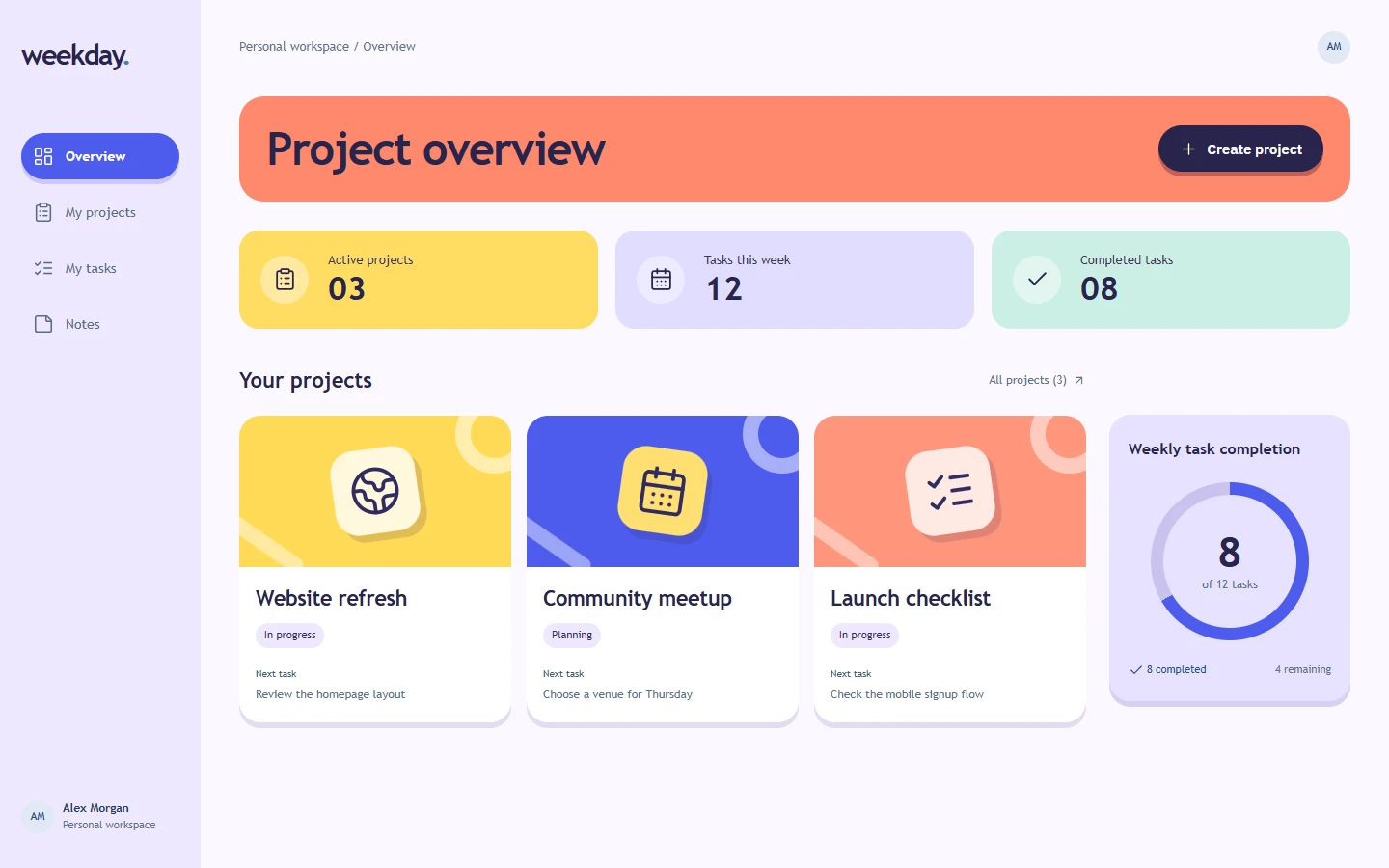
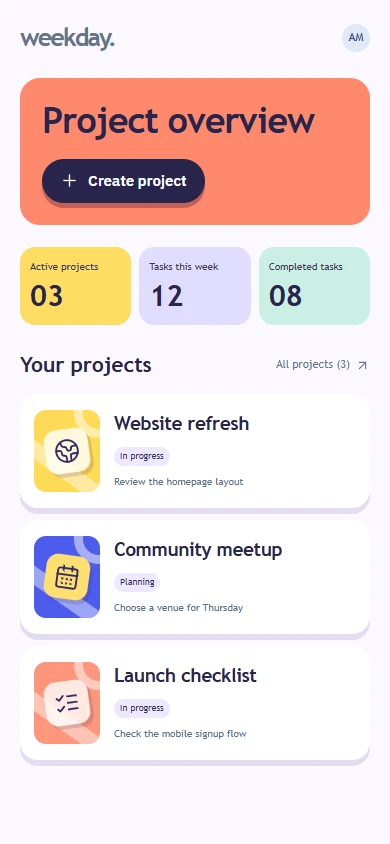
Use for: Community tools, creative apps, and personal projects.
Design: Coral and yellow panels, large rounded headings, pill buttons, and roomy cards.
On mobile: Replace the sidebar with a top bar and stack the cards.
Prompt tip: Use a neutral background so the colorful cards and main button stay easy to read.
Read or copy the prompt manually
Bold & Disruptive
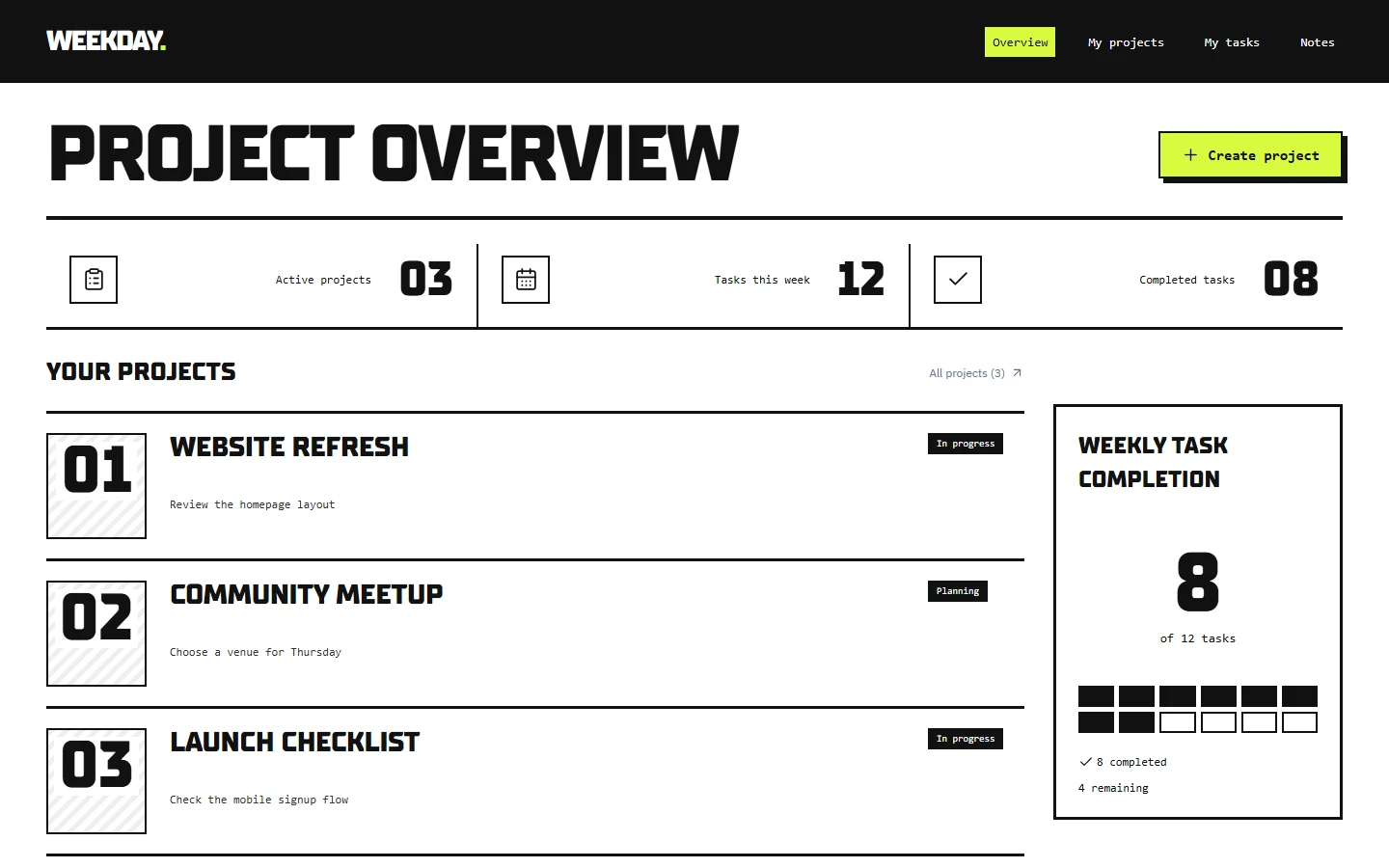
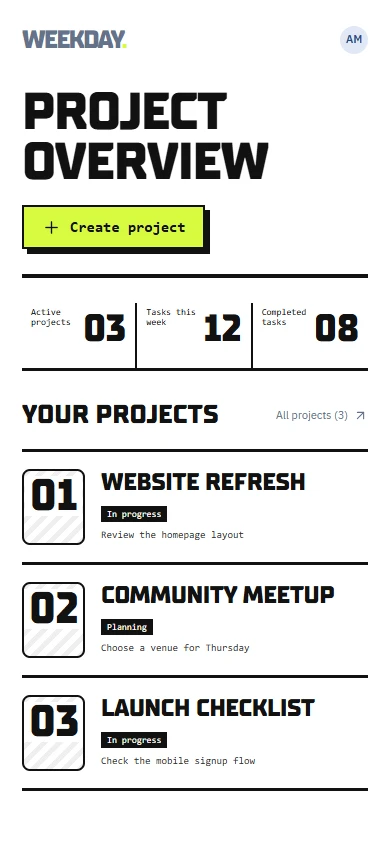
Use for: Creative studios and portfolios.
Design: Black and white, an acid-yellow main button, thick lines, square corners, and heavy type.
On mobile: Stack the project rows and reduce the headline size to fit the phone screen.
Prompt tip: Keep navigation labels readable and buttons large enough to tap.
Read or copy the prompt manually
Minimal & Focused
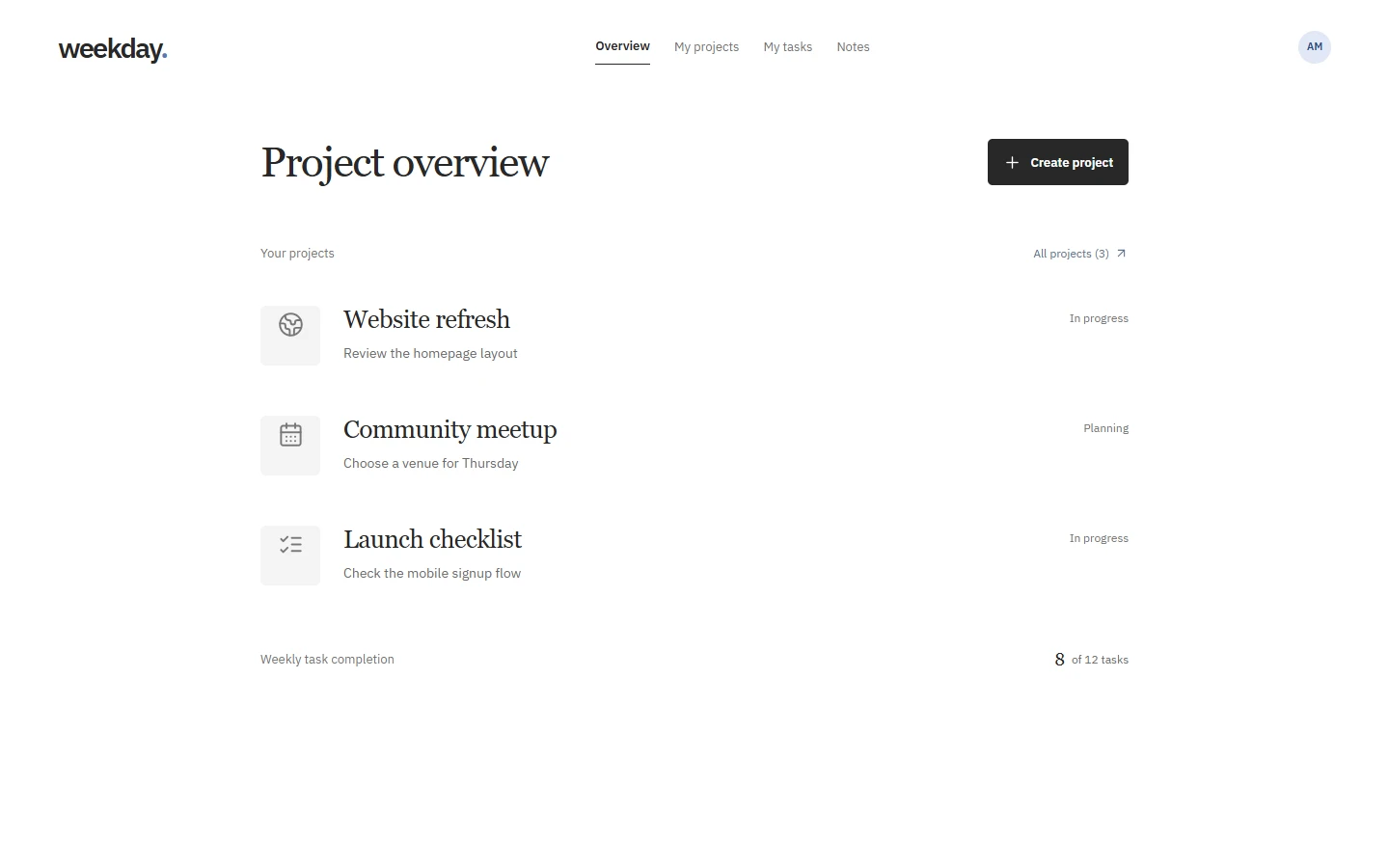
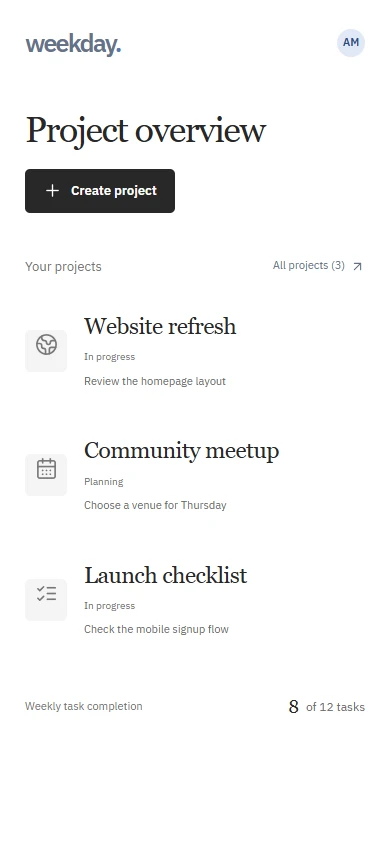
Use for: Writing tools, simple planners, and focused productivity apps.
Design: A narrow content column, black type, generous whitespace, and plain project rows.
On mobile: Keep one column and leave the main actions visible for touch and keyboard users.
Prompt tip: Keep essential controls visible and make secondary actions usable by touch and keyboard.
Read or copy the prompt manually
Corporate & Professional
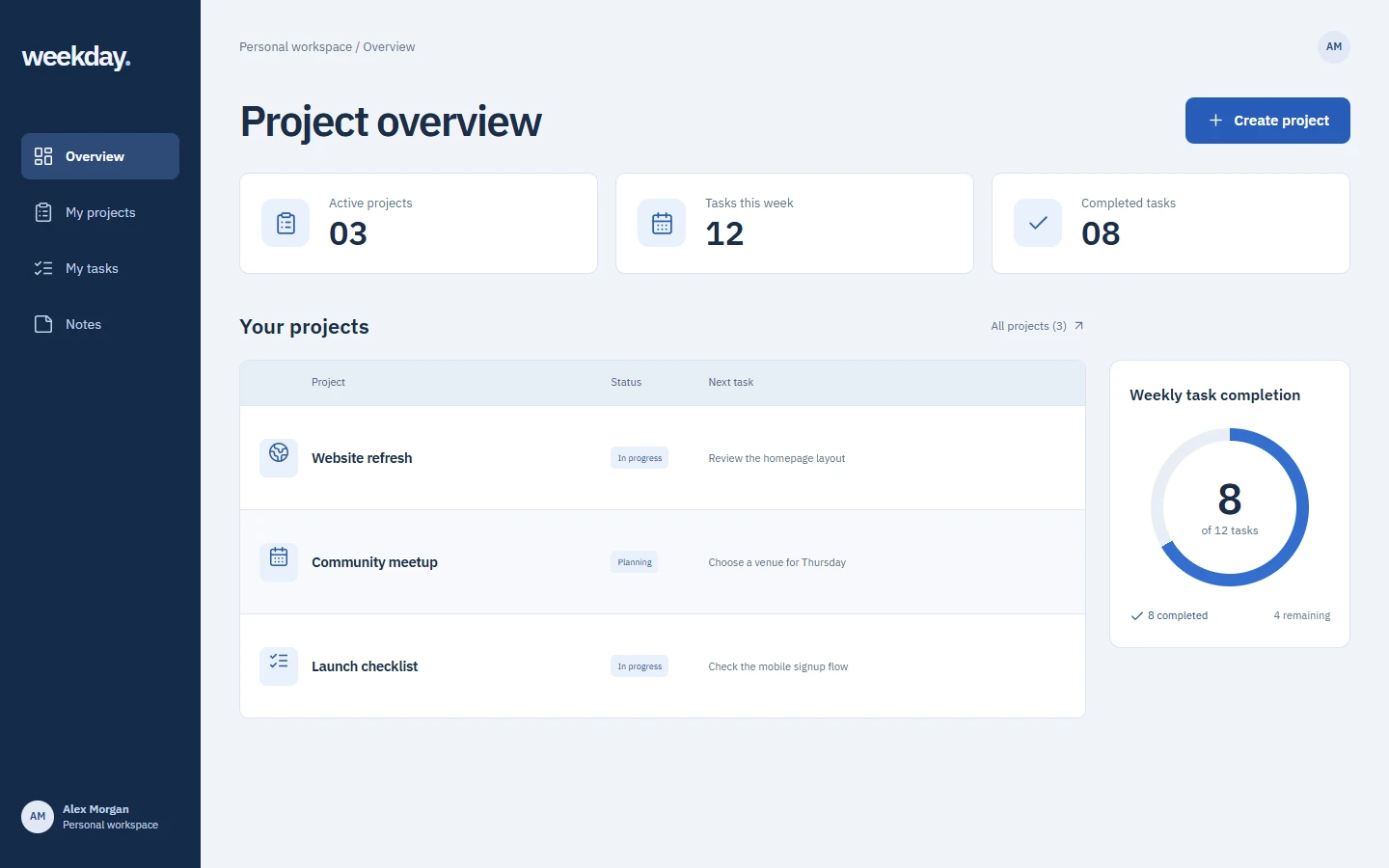
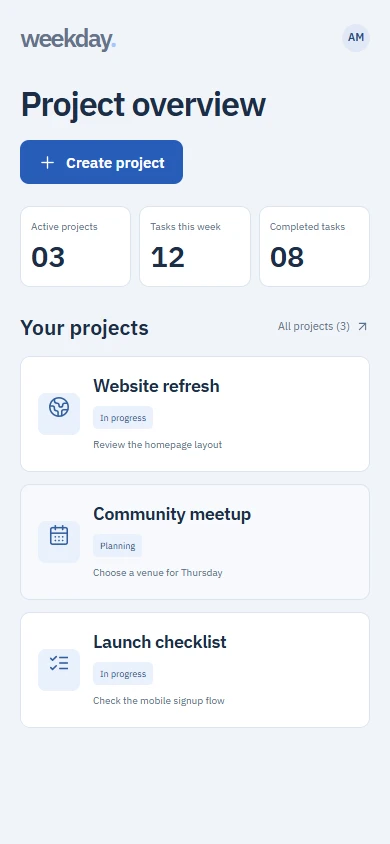
Use for: Business portals and team tools.
Design: A navy sidebar, blue main button, aligned totals, and a project table.
On mobile: Turn table rows into labeled cards. Keep the project name, status, and next task.
Prompt tip: Name the information each mobile card needs to show.
Read or copy the prompt manually
Glassmorphic & Layered
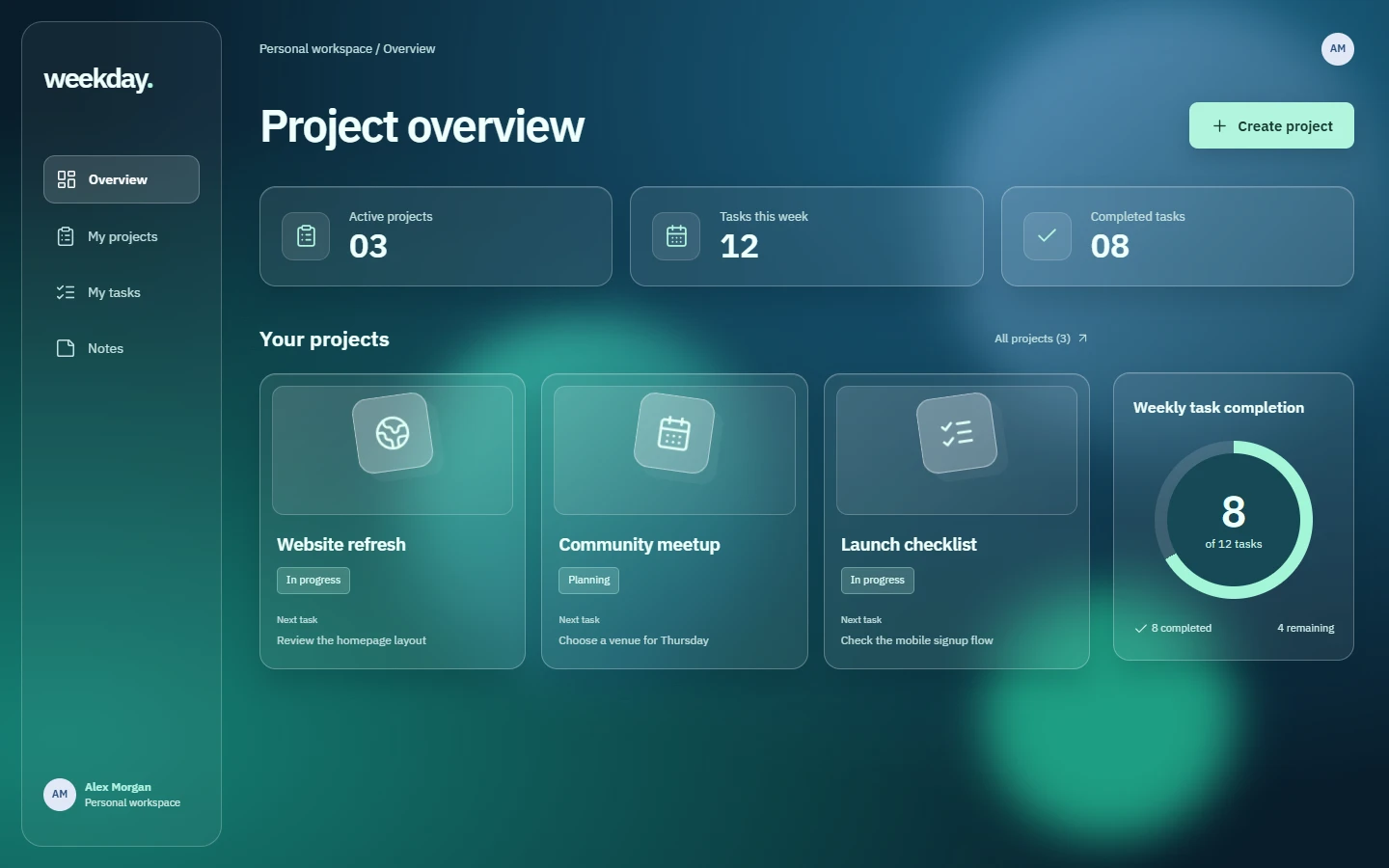
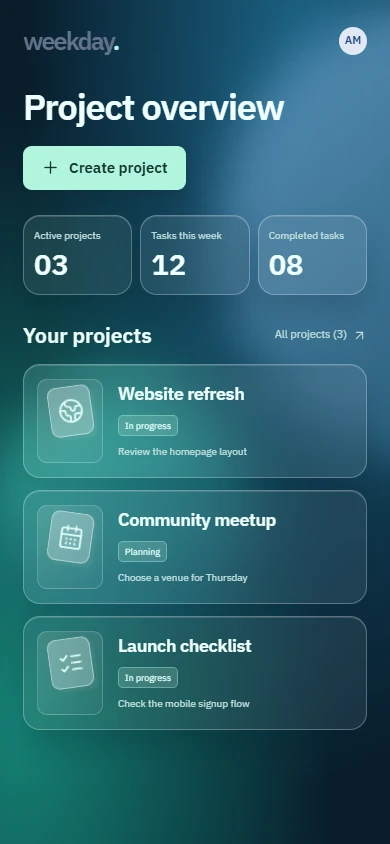
Use for: Portfolios, creative workspaces, and design tools.
Design: A dark teal background, frosted panels, thin translucent borders, and layered cards.
On mobile: Stack the panels and reduce the blurred areas.
Prompt tip: Put a solid surface behind text when blur is unavailable or the reader prefers reduced transparency.
Read or copy the prompt manually
Make the prompt your own
- Describe who the page is for and the one action they should take.
- Replace the fictional project board with your own page, content, and features.
- Choose one visual direction and attach its screenshot. Mention exactly what you like.
- Ask for desktop and mobile versions before expanding the design to other pages.
- Check readability, keyboard navigation, touch targets, and loading and error states in the working page.
The selection is inspired by styles 1, 5, 7, 12, and 17 in Felix Haas’s Prompt Library for UI. WYN wrote the prompts and built the sample screens for this guide.